Set one up for them
For grandparents and aging parents

Turn an old iPad into a photo frame for Grandma

Video calls mean ten minutes of "can you see me?" A hand-me-down iPad on the side table does the easy part: the grandkids' photos on a loop, today's date in letters big enough to read from the couch, and the weather before they head out. All they do is look.

Pick what they need Try the photo frame
Nothing for them to tapWorks on older iPadsNo subscription

Family Photo Frame
Desk Calendar
Big Clock
Grandkids on a loop by the armchair
Why an old iPad

No new gadget, no new password, no monthly fee

Digital photo frames and big-number day clocks are both things you'd have to buy. The old iPad in your drawer can be both, and you set it up for them once.

Texting photos to Grandma

  • Photos get buried in the family group text and she can't find them again
  • Tiny text means hunting for reading glasses and pinching to zoom
  • "What day is it?" still means checking the paper calendar on the fridge

An old iPad on the side table

  • The grandkids' photos play all day, so she sees them walking by
  • Big numbers for the time and date, readable from the armchair
  • Nothing to tap, nothing to update, it just stays on
By need

What would help them most?

Pick the closest one to see which screen to set up.

Family Photo Frame
Suggested setup

See the grandkids every day

Load a few hundred photos while you're visiting. New ones go straight from your phone to the frame, and they never have to touch it.

Family Photo FramePhotos on a loop
Open →
Photo SenderRuns on your phone
Open →
Today's WeatherCoat or no coat
Open →
On a stand on the side table or TV console, plugged in for good.
Desk Calendar
Suggested setup

Today's date, big and clear

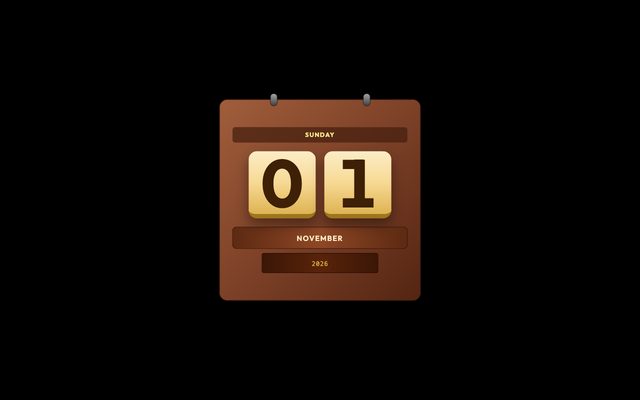
A wooden-block calendar with the date in big type, next to a large clock. The question "what day is it?" answers itself.

Desk CalendarToday's date, big
Open →
Big ClockReadable across the room
Open →
Today's WeatherCoat or no coat
Open →
In the kitchen or by their favorite chair, where they start the morning.
Big Clock
Suggested setup

Big numbers, easy on the eyes

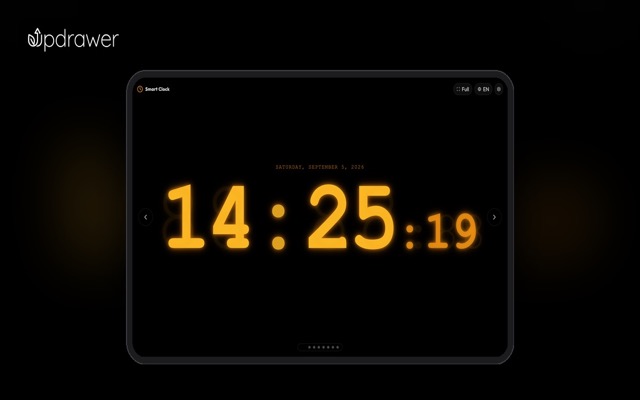
Time, date and weather in large type on a dark screen, no reading glasses needed.

Big ClockReadable across the room
Open →
Today's WeatherCoat or no coat
Open →
Desk CalendarToday's date, big
Open →
At eye level when they're sitting down, brightness moderate.
Time Zone Clock
Suggested setup

Know when it's OK to call

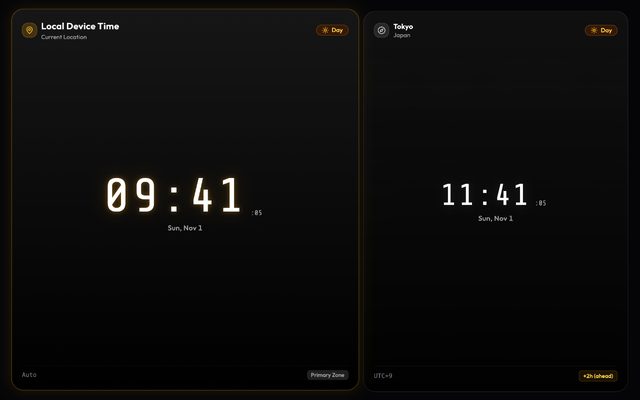
One kid in Seattle, one in London. A multi-time-zone clock shows when everyone's awake.

Time Zone ClockWhen the kids are awake
Open →
Family Photo FramePhotos on a loop
Open →
Today's WeatherCoat or no coat
Open →
Next to the phone they use to call the family.
Apps

6 apps for Grandma and Grandpa

All free, all in the browser. Anything tagged "Runs on old devices" works even on iPads stuck on iOS 10–12, the kind every family has in a drawer.

Family photos

Family Photo Frame
Photos on a loopRuns on old devices

Family Photo Frame

Turn any old screen into a slideshow of the photos you love.

Try it →
Photo Sender
Runs on your phone

Photo Sender

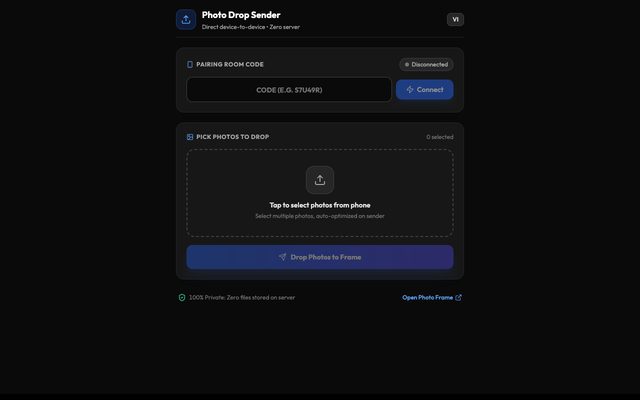
Open it on your phone, pick photos and send them straight to their frame. Photos go directly between the two devices and aren't stored on a server.

Try it →

Date, time and weather

Desk Calendar
Today's date, bigRuns on old devices

Desk Calendar

A wooden-block desk calendar with the date in big type and a quote for the day.

Try it →
Big Clock
Readable across the roomRuns on old devices

Big Clock

A calm, burn-in-safe clock for your nightstand or desk.

Try it →
Time Zone Clock
When the kids are awake

Time Zone Clock

Keep up to three time zones in view for remote teams and far-away family.

Try it →
Today's Weather
Coat or no coat

Today's Weather

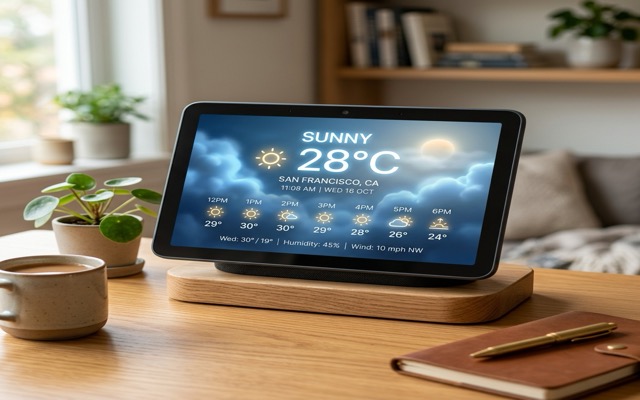
The forecast at a glance, big enough to read from across the room.

Try it →
Setting it up for them

You set it up once. They just enjoy it.

Keep it plugged inPut it on a stand and leave the charger in. Nobody has to remember to charge it.Never goes dark
Lock it to one appTurn on Guided Access so a stray tap can't send them somewhere confusing.Tap-proof
Turn off Auto-LockIn Settings, set Auto-Lock to Never so the screen stays on.Always showing photos
Load photos while you visitSending is fastest and most reliable when your phone and the frame are on their home Wi-Fi.Hundreds at once
Setup

Five minutes on your next visit

1Open the link on the old iPadGo to updrawer.com in Safari and pick the photo frame or calendar. No app, no account.
2Add photos, pair your phoneAdd photos from the iPad, or scan the code on the frame with your phone to send them over.
3Set it down and plug it inTap full screen and turn off Auto-Lock. From now on, they just look.
FAQ

Families ask

Can I turn an old iPad into a digital photo frame?

Yes. Open the photo frame on the iPad, add photos from it or send them from your phone, then tap full screen. The photos loop on their own, no new frame to buy.

Can I send photos to their frame from home?

Yes, while the frame is on and online: open Photo Sender on your phone, pick photos and send them straight over. It's most reliable when both devices are on the same Wi-Fi. From far away on cellular data, some carriers may not connect yet; we're working on it.

Is there a monthly fee?

No. Everything is free in the browser, with no subscription and no ads.

Will it work on their old iPad?

The photo frame, desk calendar and clock run even on iPads stuck on iOS 10–12. Receiving photos sent from a phone needs iOS 13 or Android 7 and up; on older iPads, add photos directly on the device.

Do they have to do anything?

No. You set it up once, plug it in and turn on full screen. Turning on Guided Access means an accidental tap can't take them anywhere else.

More ideas

Your old screen has more jobs it could do

Bring the old iPad on your next visit

Load it with photos, set it on the side table, plug it in. Next time you call, they'll tell you which picture made them smile today.

Open the photo frame All apps